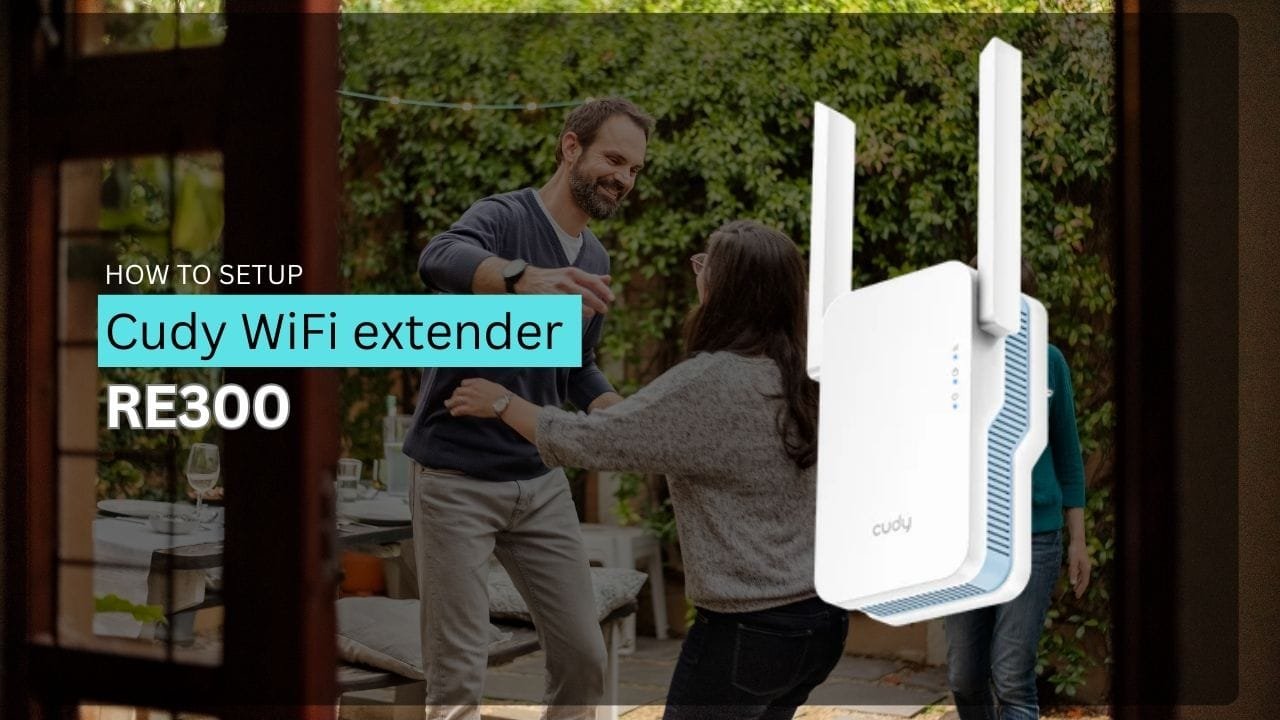
The first thing people do is panic about which end goes where. Don’t. Plug it into power, flip the mode selector to Repeater, and wait for the lights to come on. That’s it. The device will boot up and broadcast its own WiFi network called “Cudy-RE300”—this is actually your access point to set everything up.
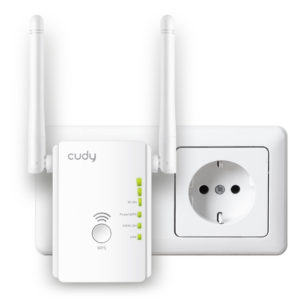
The LED Lights (Seriously, This Matters)
The RE300 has three status lights. Ignoring what they mean is how people get stuck thinking something’s broken when it’s just still booting:
- Power LED (solid green) – Device is powered and ready. Takes about 10–15 seconds after plugging in.
- WAN/LAN LED – Shows connection to your main router. Off = not connected. Blinking = connecting. Solid = connected.
- WLAN LED (solid green with bars) – Shows WiFi signal strength from the host router. More bars = stronger signal.
If you wait 2 minutes and the Power LED is still off, the device might be DOA (dead on arrival). But give it at least 60 seconds after plugging in—seriously.
Method 1: Web Browser Setup at 192.168.10.254 (Slower But Clearer)
This is the method that gives you actual control over everything. You’ll know exactly what’s happening at each step.
The Real Steps
- Plug the RE300 into power near your router
Wait for the Power LED to turn solid green. Seriously wait. Don’t rush. - Switch the mode selector to REPEATER
There’s usually a physical switch on the device. Make sure it’s set to Repeater mode, not AP or anything else. - Connect your phone/laptop to the RE300’s default WiFi
Go to WiFi settings and look for “Cudy-RE300” (no password, it’s open by default).
Connect to it. Your phone will probably show “no internet”—that’s fine, you don’t need internet to access the setup page. - Open a browser and go to 192.168.10.254
Type this in the address bar:192.168.10.254
Not the search box. The address bar. Seriously, people put it in Google and then get confused.
Alternatively, tryhttp://ap.setup/orhttp://cudyre.net/(some models use these). - Login page appears
- Click “Wizard”
The setup wizard will walk you through the rest. - Select “Wireless Extender” mode
(Not Router or anything else). - Choose your timezone (optional but clean to set).
- The RE300 scans for networks
Wait 10–15 seconds. It’ll show a list of WiFi networks nearby. - Select your main router’s WiFi
Click on the network you want to extend (not “Cudy-RE300”, your actual home WiFi). - Enter your WiFi password
This is the critical part. Use the exact password you use on your phone to connect to your router. One character wrong and the whole setup fails.
Watch for CAPS LOCK. Watch for spaces. Slow down and type it twice to be sure. - Customize the extended network name (SSID)
You can name it “YourWiFi_EXT” or keep it the same as your main WiFi. By default, it adds “EXT2G” or “EXT5G” to the name. - Click “Save & Apply”
The RE300 will reboot. Don’t unplug it. Wait 60–90 seconds for it to fully restart and establish connection. - Check the WLAN LED
- Solid green with 2–3 bars = good signal, good placement.
- Solid green with 1 bar = weak signal, move it closer to the router.
- Blinking = still trying to connect (give it another 30 seconds).
Method 2: WPS Button (Faster, But Timing is Everything)
If your router has a WPS button, this takes about 2 minutes. But people mess up the timing constantly.
The Exact Steps
- Plug the RE300 into power near your router
Flip the mode selector to Repeater. Wait for solid green power LED. - Press the WPS button on your router for 2–3 seconds
Not 10 seconds. Not 1 second. 2–3 seconds. This puts the router in pairing mode. - Within 2 minutes, press the WPS button on the RE300 for 5–6 seconds
Yes, longer than the router. Hold it for a full 5–6 seconds. - Watch the lights
Both devices should show blinking WiFi LEDs briefly. - Wait for solid green on WLAN LED
When the RE300’s WLAN LED turns solid green with at least 2 bars, the connection is established. - Relocate for better coverage
Move the RE300 to the optimal spot—midway between router and dead zone.
What kills WPS every time:
Holding the button too long (people hold for 10 seconds thinking “longer = better”). Missing the 2-minute window. Pressing the RE300 button before the router button (order matters).
Default Login Credentials
| Setting | Value | Notes |
|---|---|---|
| IP Address | 192.168.10.254 | Or try http://ap.setup/ or http://cudyre.net/ |
| Username | (usually just password) | Some models skip username |
| Password | admin | Lowercase, case-sensitive |
| Default SSID | Cudy-RE300 | Open WiFi, no password |
| Default Mode | Repeater | Set via physical switch on device |
Common Issues (Real Problems, Real Fixes)
Problem: 192.168.10.254 Won’t Load
The page just says “can’t reach this page” or times out.
What’s usually happening:
You’re connected to your main WiFi, not the Cudy-RE300’s WiFi. The setup page only exists when you’re connected to the RE300 itself.
Fix:
Go back to WiFi settings. Disconnect from your home WiFi. Find “Cudy-RE300” and connect to it. Then try 192.168.10.254 again.
If “Cudy-RE300” WiFi doesn’t show up at all:
- Power cycle the RE300 (unplug, wait 10 seconds, plug back in).
- It takes ~30 seconds to broadcast WiFi after powering on.
- Toggle WiFi off/on on your phone to refresh the network list.

Problem: Password “admin” Doesn’t Work
Most likely:
CAPS LOCK is on. Or someone changed the password before and now you’re stuck.
Fix:
- Turn off CAPS LOCK. Type
adminin lowercase. - Check if there’s a password sticker on the physical device.
- If that fails, factory reset: hold the reset button on the back for 10 seconds while powered on.
Problem: WiFi Connects But No Internet
The RE300 shows as connected—lights are green, you can ping it—but websites won’t load.
What’s happening:
Either the WiFi password was slightly wrong and it’s stuck in a connection loop, or the DHCP range is misconfigured.
Fix steps (in order):
- Restart everything (sounds dumb, solves most of this)
- Go back to 192.168.10.254
Check the WiFi password field in the wizard. Compare it character-by-character to your actual router password. One wrong letter breaks everything. - Move closer to the router
If the WLAN LED only shows 1 bar, signal’s too weak. The RE300 can’t maintain connection. Move it closer during troubleshooting.
Problem: WPS Button Connection Failed
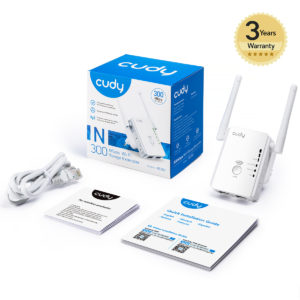
You held the buttons, watched for lights, but nothing happened. Still not connected.
What went wrong:
Timing closed (more than 2 minutes passed). Router doesn’t actually have WPS (some newer ones disabled it). Signal was too weak.
Fix:
Try the web browser method instead (Method 1). It’s more reliable because there’s no timing pressure and you see exactly what’s happening.
FAQs: Cudy RE300 Setup
Yes. Switch the mode selector to “AP” if you’re running an Ethernet cable from your router to the RE300. This is more stable than repeater mode if you have the cable.
“Cudy-RE300” is the RE300’s own network—used for setup only. The extended network is what devices actually connect to after setup (usually your main WiFi name + “_EXT”).
By default, yes—it uses your router’s password. You can change it, but having the same password makes switching between networks seamless.
Repeaters use half their bandwidth to talk to the router, half to serve devices. It’s physics. Placement closer to the router = stronger signal = faster speeds.
No. Pure WiFi setup works fine (Methods 1 and 2). Ethernet is optional—use it if you want to hardwire the RE300 to your router instead.