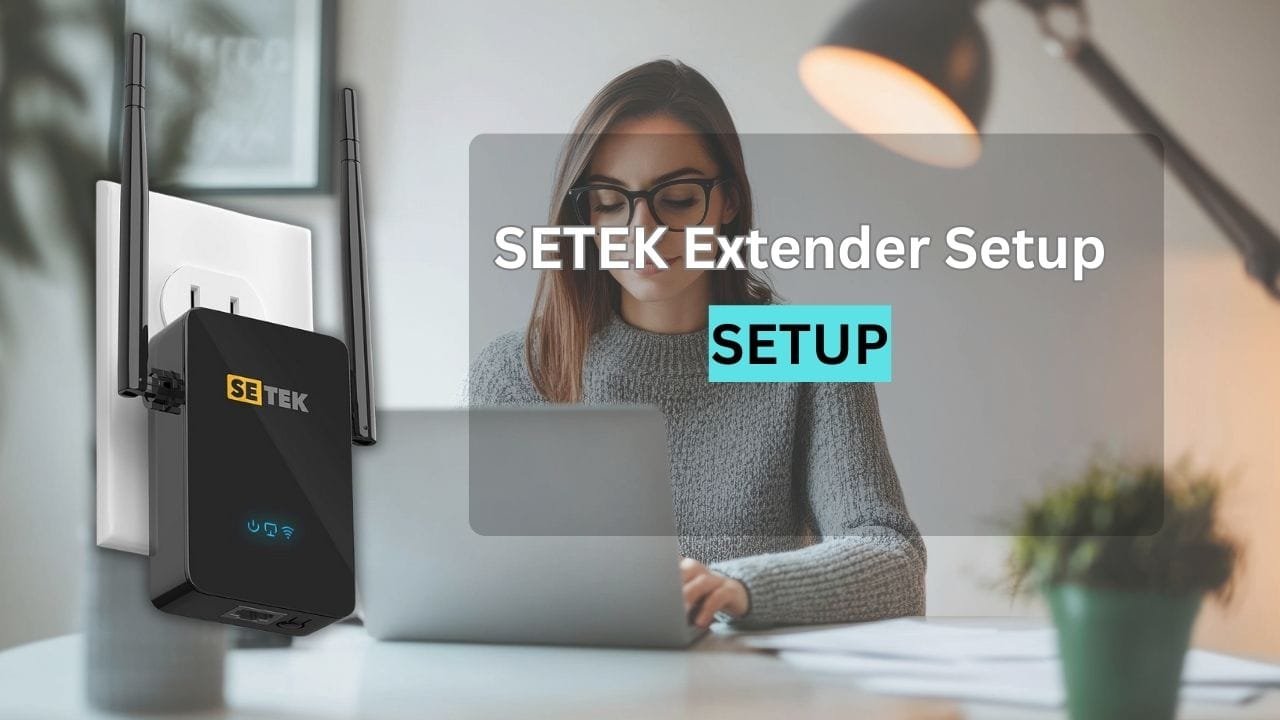

Here’s the truth about SETEK extenders: they’re solid devices, but people mess up the setup in predictable ways. The WPS button gets held too long. The timing’s off by a few seconds. The wrong IP gets typed. Then there’s the LED color confusion—is green good? When does it blink? I’m going to walk through exactly what to do, what actually goes wrong, and how to fix it without resorting to a factory reset.
What You’re Getting (And What You Actually Need)
When the box arrives, you’ll find:
- The SETEK extender unit
- USB power cable (or wall adapter depending on model)
- Ethernet cable
- A quick start guide you’ll probably ignore
Before you do anything, plug the extender in within your router’s current coverage—same room is ideal. Not because WiFi’s magic, but because weak signal during setup means the devices can’t talk to each other.
The LED Light Language (What’s Actually Happening)
SETEK uses LEDs to tell you what’s going on. Ignore this at your peril:
- Solid green/blue on power LED – Device is powered and ready.
- Blinking WiFi LED – It’s searching for your network or trying to connect.
- Solid green/blue on WiFi LED – Successfully connected.
If the WiFi LED stays off or stays orange/red after 2–3 minutes of waiting, something went wrong. Usually, it’s a password typo or the timing between button presses missed the window.
Method 1: WPS Button (Fast, But Timing Matters)
If your router has a WPS button, this works in about 2 minutes. But here’s where people slip up.
The Actual Steps
- Plug the SETEK into power near your router
Wait for the power LED to turn solid green. Don’t rush to step 2 yet—that takes about 10–15 seconds. - Press the WPS button on your router for 2–3 seconds
That’s it. Not 10 seconds. Not 1 second. 2–3 seconds. Hold it until a light comes on or you feel it click. - Within 50 seconds, press the SETEK’s WPS button for 2–3 seconds
Set a mental timer or phone timer if you need to. The window is literally 50 seconds. Go slower than you think you should. - Watch the lights
Both devices should show blinking WiFi LEDs briefly. This happens fast—maybe 10–15 seconds total. - Wait for solid green
The extender’s WiFi LED should flip to solid green/blue. This is the “connection established” signal. - Unplug and relocate
Now you can move it to the spot where you actually need coverage—midway between your router and the weak area.
What actually trips people up:
Holding the WPS button too long (people hold for 5+ seconds thinking “hold it longer = more secure”). The window between button presses closes fast. Using WPS on a router that doesn’t have it (surprising number of newer routers ditched WPS for security reasons).
Method 2: Web Browser Setup (192.168.10.1)
This gives you more control. It’s slightly longer but more reliable because you actually see what’s happening.
The Real Steps
- Plug the SETEK in near your router
Again, wait for that solid green power LED. - Connect your phone/laptop to the SETEK’s default WiFi
Go to WiFi settings on your device. Look for a network literally called “SETEK” (no special characters, not “SETEK_2.4G” initially).
No password needed. Just tap it and connect. - Open a browser and type 192.168.10.1
Chrome, Safari, Edge—doesn’t matter. Put it in the address bar, not the search box. This matters more than you’d think because people put it in Google’s search bar and get confused when nothing happens.
Press Enter and wait 5 seconds for the page to load. - Login page appears
Username:admin(lowercase)
Password:admin(lowercase, and yes, case matters)
Click Login. - Select your WiFi mode
You’ll see three options: - SETEK scans for networks
Wait 10–15 seconds. It will show a list of available WiFi networks. - Select your main WiFi network
Choose the one you actually use (not “SETEK” or random neighbor networks). - Enter your WiFi password
This is the password you use on your phone to connect to your router. Not your admin password. Not your router’s admin password. Your WiFi password. Typos here are the #1 reason setups fail.
Type it slowly. Watch for CAPS LOCK. - Optionally rename the extended network
You can set a new SSID here or leave it. If you leave it blank, it becomes “SETEK_2.4G” or mirrors your main network name. - Click Save or Apply
The extender will reboot. Don’t unplug it. Wait 60–90 seconds. - Relocate to where you need it
Halfway between router and dead zone. Not in a closet. Not behind metal pipes.
Method 3: Mobile Setup (Same as Method 2, Just Smaller Screen)
Everything above applies, just on your phone instead of a computer. Honestly, I’d recommend a computer for this because the 192.168.10.1 dashboard is cramped on mobile—easy to miss options.
Default Login Credentials (By Model)
| SETEK Model | IP Address | Username | Password | Notes |
|---|---|---|---|---|
| SE01 / SE02 / Standard | 192.168.10.1 | admin | admin | Lowercase, case-sensitive |
| Older Models | 192.168.1.254 | admin | admin | Check your label if unsure |
Common Issues (And Why They Happen)
Problem: 192.168.10.1 Won’t Load
You typed everything right, but the browser just says “can’t reach this page.”
What’s usually happening:
You’re still connected to your main router’s WiFi, not the SETEK’s WiFi. The page only exists when you’re connected to SETEK’s own network.
Fix:
Go back to WiFi settings. Look for “SETEK” (or whatever the default SSID is). Connect to that. Then try 192.168.10.1 again.
If SETEK WiFi doesn’t show up:
- Power cycle the SETEK (unplug 10 seconds, plug back in).
- It takes ~30 seconds to broadcast its WiFi after powering on.
- Some phones need WiFi toggled off/on to refresh the network list.
Problem: Login Says “admin/admin” Doesn’t Work
Most likely:
CAPS LOCK is on. Or someone changed the password before and forgot about it.
Fix:
- Make sure CAPS LOCK is off (look at your keyboard)
- Try
admin/adminagain, very carefully typed. - If that fails, look at the sticker on the physical extender—some have a printed password.
- Still nothing? Factory reset: hold the reset pinhole button for 10 seconds while powered on.
Problem: WiFi Connects But No Internet
This is the worst one because the SETEK shows it’s connected—lights are green, you can ping it—but when you open a website, nothing loads.
What’s happening:
The extender successfully paired with your router but can’t get an IP address from your router’s DHCP server. Or the password you entered was slightly wrong and it’s stuck in “authentication retry” mode.
Fix steps (in order):
- Restart everything
Unplug the router. Unplug the SETEK. Wait 30 seconds. Plug router back in first, let it fully boot (~1 minute). Then plug in SETEK.
Seriously, this fixes it 60% of the time. - Check the password you entered
Go back to 192.168.10.1. Look at the WiFi password field. Copy it character by character and compare it to your actual router password. One wrong letter kills everything. - Check DHCP ranges
Go into your main router’s settings (usually 192.168.1.1 or 10.0.0.1) and check the DHCP range. Then check the SETEK’s DHCP settings. They need to be in compatible ranges.
This one’s for power users, but it actually causes issues after you buy a new modem. - Move closer to the router
If signal’s weak (only 1 bar), the extender can’t maintain a stable connection to the router. Move it closer during troubleshooting.
Problem: WPS Button Connection Failed
You held the buttons, watched for lights, but nothing happened. No connection.
What went wrong:
- Timing. The 50-second window closed.
- Your router doesn’t actually have WPS (some newer ones disabled it).
- Signal was too weak between devices.
Fix:
Try the web browser method instead (Method 2). It’s more reliable because there’s no timing pressure.
FAQs
Yes. Once logged in, go to Settings → Admin Password and set a new one. Write it down. Don’t use something you’ll forget in 3 months.
Extenders cut bandwidth in half—half for talking to the router, half for your devices. It’s physics. Place it closer to the router if speed matters.
Yes, exactly. Halfway between them. Not in a corner. Not behind a metal filing cabinet.
No. WiFi-only setup works fine (Method 1 and 2). Ethernet is optional and honestly slower to set up.
It’s not connecting. Either password wrong, signal too weak, or WPS timing missed. Power cycle and try again, or try a different method.