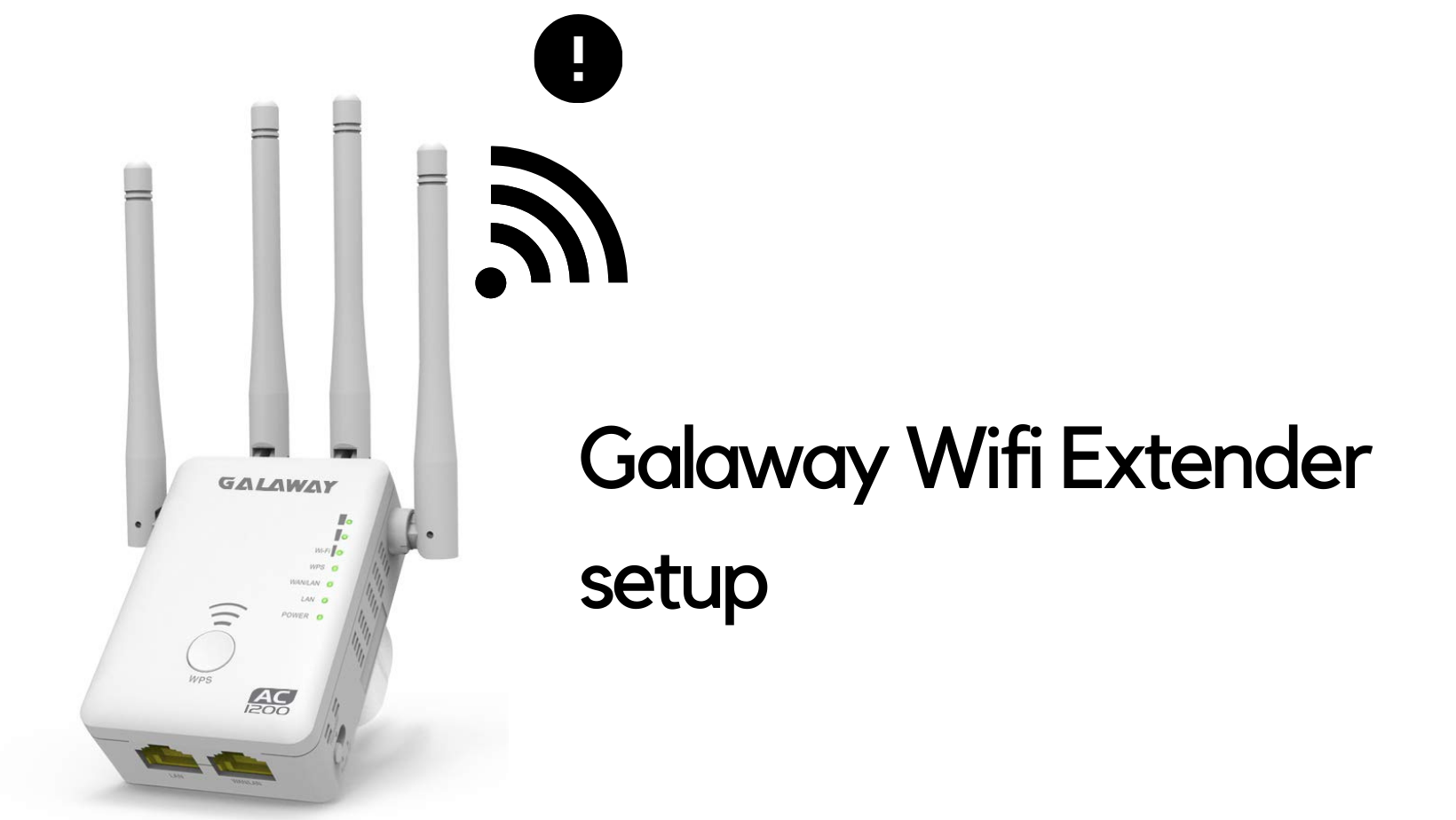
GALAWAY WiFi extender setup is straightforward until you get the timing wrong on the WPS button, connect to the wrong WiFi network, or type the password with a typo. Then people think the device is broken when it’s just user error.
Here’s what actually works, what breaks it, and how to fix it without guessing.
GALAWAY WiFi Extender Setup: Web Browser Method (Clear & Slower)
This approach shows you exactly what’s happening—you see every step instead of trusting LED blinks.
The Real Steps
- Plug the GALAWAY extender into power near your router
Wait for the power LED to turn solid—takes about 15 seconds. - Flip the mode selector to “Repeater”
Most GALAWAY units have a physical switch on the side. - Connect to GALAWAY’s default WiFi
Go to WiFi settings. Look for “Galaway” (no password needed).
Connect to it. - Open a browser and type 192.168.10.1
Or tryhttp://ap.setup/if the IP doesn’t work.
Put it in the address bar, not the search box. Press Enter. - Login page appears
- Click “Wizard” to start setup.
- Confirm “Repeater Mode” is selected
This is the default, but confirm it. - The extender scans for networks
Wait 10–15 seconds. A list of available WiFi networks appears. - Select your main router’s WiFi
Click on the network you want to extend (not “Galaway”, your actual home WiFi). - Enter your WiFi password exactly
This is the critical step. One character wrong and the whole setup fails. Watch for CAPS LOCK. Type it slowly. - Create a name for the extended network (optional)
By default it adds “-EXT” to your main network name. - Click “Next” or “Finish”
The GALAWAY extender reboots. Don’t unplug it. Wait 60–90 seconds. - Check the LED status
- Solid green/blue = strong signal, excellent placement.
- Blinking green/blue = still connecting, wait 30 more seconds.
- Unplug and move to optimal spot
Midway between your router and the dead zone.
GALAWAY WiFi Extender Setup: WPS Button Method (Faster, But Timing Is Critical)
If your router has WPS, this takes 2 minutes—if you nail the timing.
The Exact Steps
- Plug the GALAWAY extender into power near your router
Flip the mode selector to “Repeater”. Wait for solid power LED. - Press the WPS button on your router for 1–2 seconds
Not 10 seconds. Not half a second. 1–2 seconds exactly. - Within 40 seconds, press the GALAWAY’s WPS button
Hold it for 5–6 seconds. - Watch both devices’ LED lights
They’ll blink briefly when connecting. - Wait 30 seconds
Let them establish connection. - Check for the GALAWAY WiFi network in your WiFi list
When it appears, connection is successful. - Move it to the better location
Midway between router and dead zone.
What kills WPS every time:
Holding the button too long. Missing the 40-second window. Pressing GALAWAY button before the router button (order matters).
GALAWAY WiFi Extender: Default Login Credentials
| Setting | Value | Notes |
|---|---|---|
| Web Interface IP | 192.168.10.1 | Or try http://ap.setup/ |
| Username | admin | Lowercase |
| Password | admin | Lowercase, case-sensitive |
| Default SSID | Galaway | Open WiFi, no password |
| Default Mode | Repeater | Repeater mode is default |
GALAWAY WiFi Extender Setup: Common Issues & Real Fixes
Problem: 192.168.10.1 Won’t Load
The page says “can’t reach this site” or times out.
What’s happening:
You’re connected to your main WiFi, not the GALAWAY’s WiFi. The setup page only exists when you’re on the GALAWAY network.
Fix:
Go to WiFi settings. Disconnect from your home WiFi. Connect to “Galaway”. Then try 192.168.10.1 again.
If Galaway WiFi doesn’t show up:
- Power cycle the extender (unplug 10 seconds, plug back in).
- Wait 30+ seconds for it to broadcast WiFi.
- Toggle WiFi off/on on your phone to refresh the network list.
Problem: Admin/Admin Password Doesn’t Work
Most likely:
CAPS LOCK is on. Or someone changed the password before.
Fix:
- Turn off CAPS LOCK. Type
adminin lowercase. - If that fails, check the physical device for a password sticker.
- Last resort: factory reset. Hold the reset button for 5–6 seconds while powered on.
Problem: WiFi Connects But No Internet
The GALAWAY shows as connected but websites won’t load.
What’s happening:
Either the WiFi password was wrong and it’s stuck retrying, or DHCP failed.
Fix (in order):
- Restart everything
Unplug router. Wait 30 seconds. Unplug GALAWAY. Plug router back in first (~1 minute). Then plug GALAWAY. - Check the WiFi password
Go back to 192.168.10.1. Look at the password field. Compare it character-by-character to your actual WiFi password. - Move closer to the router
If LED signal only shows weak, connection’s unstable.
Problem: WPS Button Connection Failed
You held the buttons, watched for lights, but nothing happened.
What went wrong:
Timing window closed (more than 40 seconds). Router doesn’t have WPS. Signal too weak.
Fix:
Try the web browser method instead. It’s more reliable.
FAQs: GALAWAY WiFi Extender Setup
Yes. GALAWAY has an AP mode for wired connections. Use this if you run an Ethernet cable from router to extender for better stability.
Repeaters use 50% bandwidth talking to router, 50% serving devices. Better placement = stronger signal = faster speeds.
By default, yes. You can change it, but same password means devices switch between networks seamlessly.
No. Pure WiFi setup works fine. Ethernet is optional.
Hold the reset button for 5–6 seconds while powered on. Device will reboot with default settings.